Registration of new Socks accounts was opened. Currently, in new Socks accounts will not be present Socks in the U.S..
Send your request to create Socks account only if you DO NOT need Socks from the U.S.
All VPN with static dedicated IP began to support the RDP port forwarding. Port for OpenVPN connection is a standard - 3389. For the PPTP connection works port 3390.
Due to this feature it is possible to accept connections on the RDP port through Windows Remote Assistance, or use any other application.
We wish you a successful deals!
We try to provide the best service to our customers. And we believe in our success!
How to setup OpenVPN connection on Windows 7, Vista, XP
To setup an OpenVPN connection, we advice to download the OpenVPN client from our site. This version includes the option of saving the login and password in a file. It helps to automate the connection to VPN server.
There are no fundamental differences at setup. So using this manual, you may setup any version of OpenVPN.
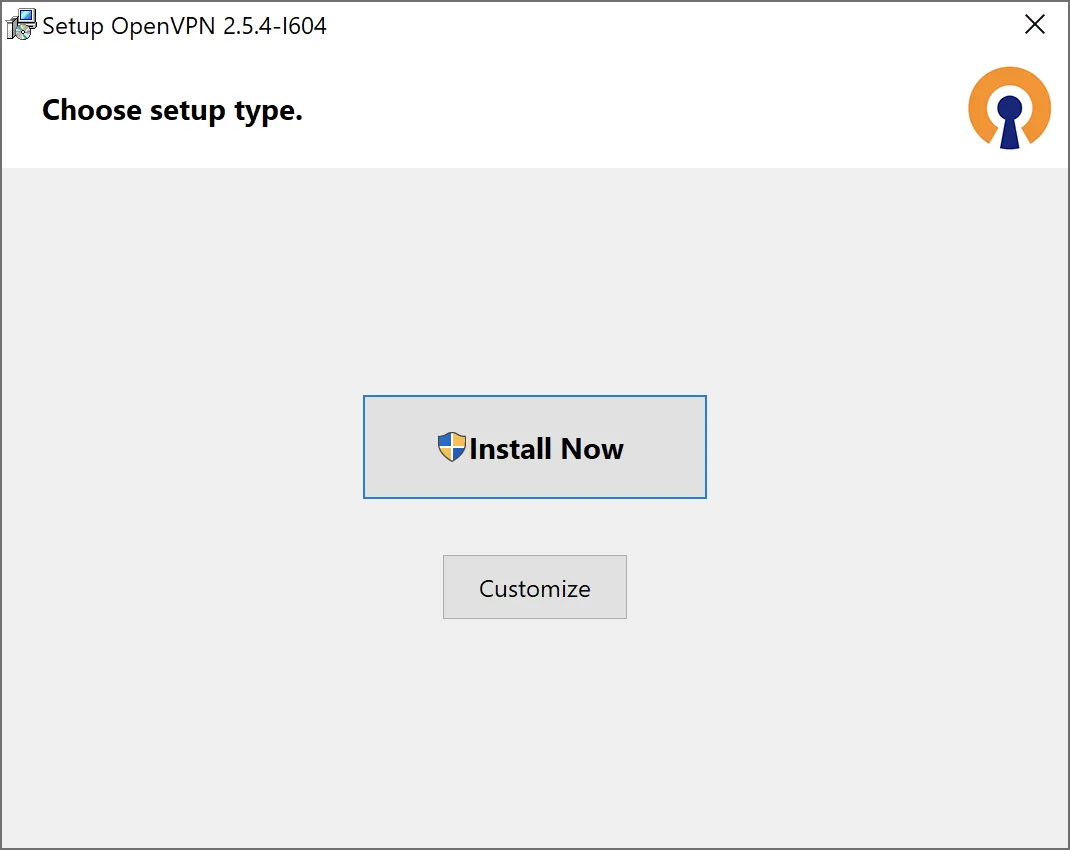
In the next window click "Next".
Leave all settings by default and click "Next".
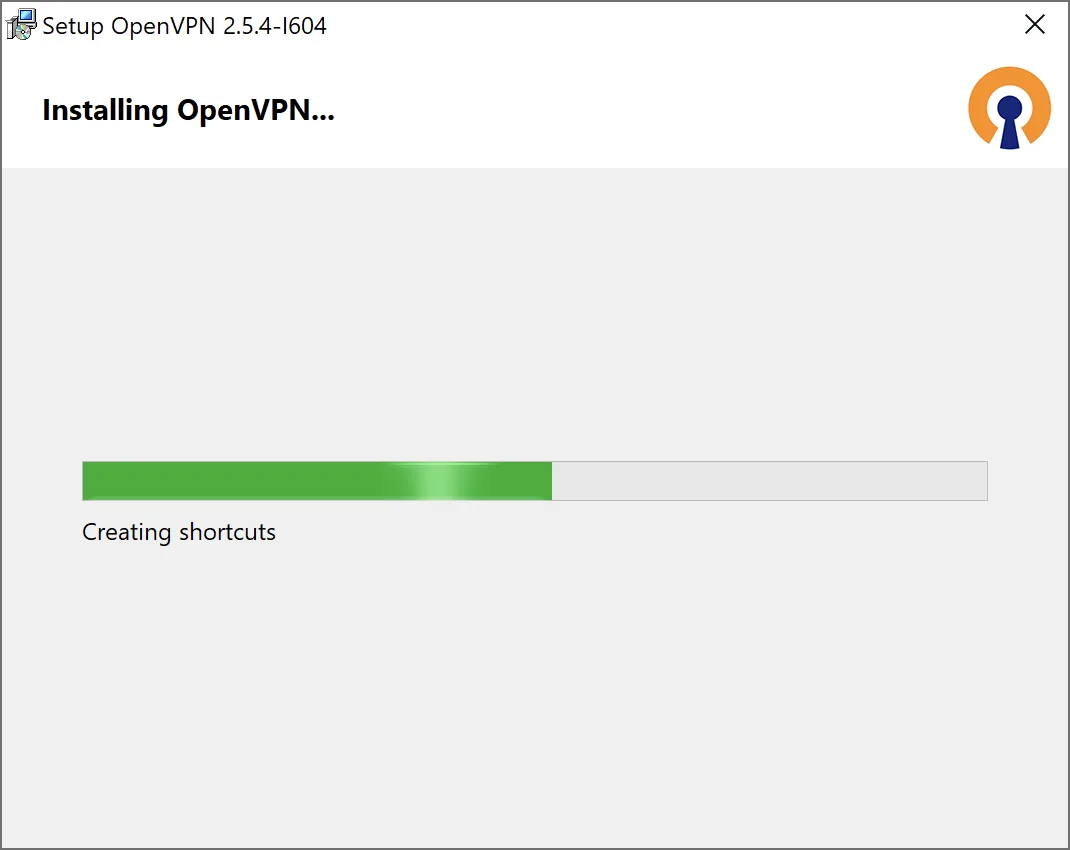
Select path where to install the program. We recommend that you install the program by default in "C:/Program Files (x86)/OpenVPN". Click to "Install".
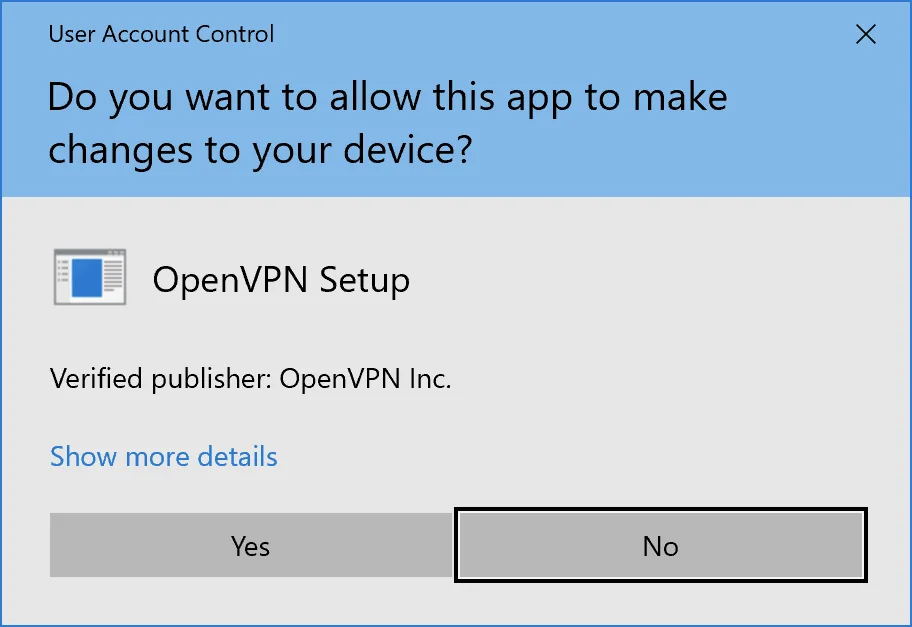
When you see the message "Would you like to install this device software", click to "Install". At this stage is to install the driver of virtual connection.
After installation, in the next window press "Finish".
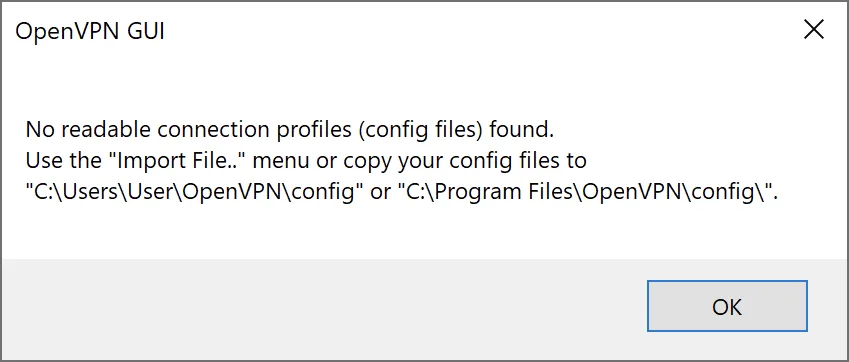
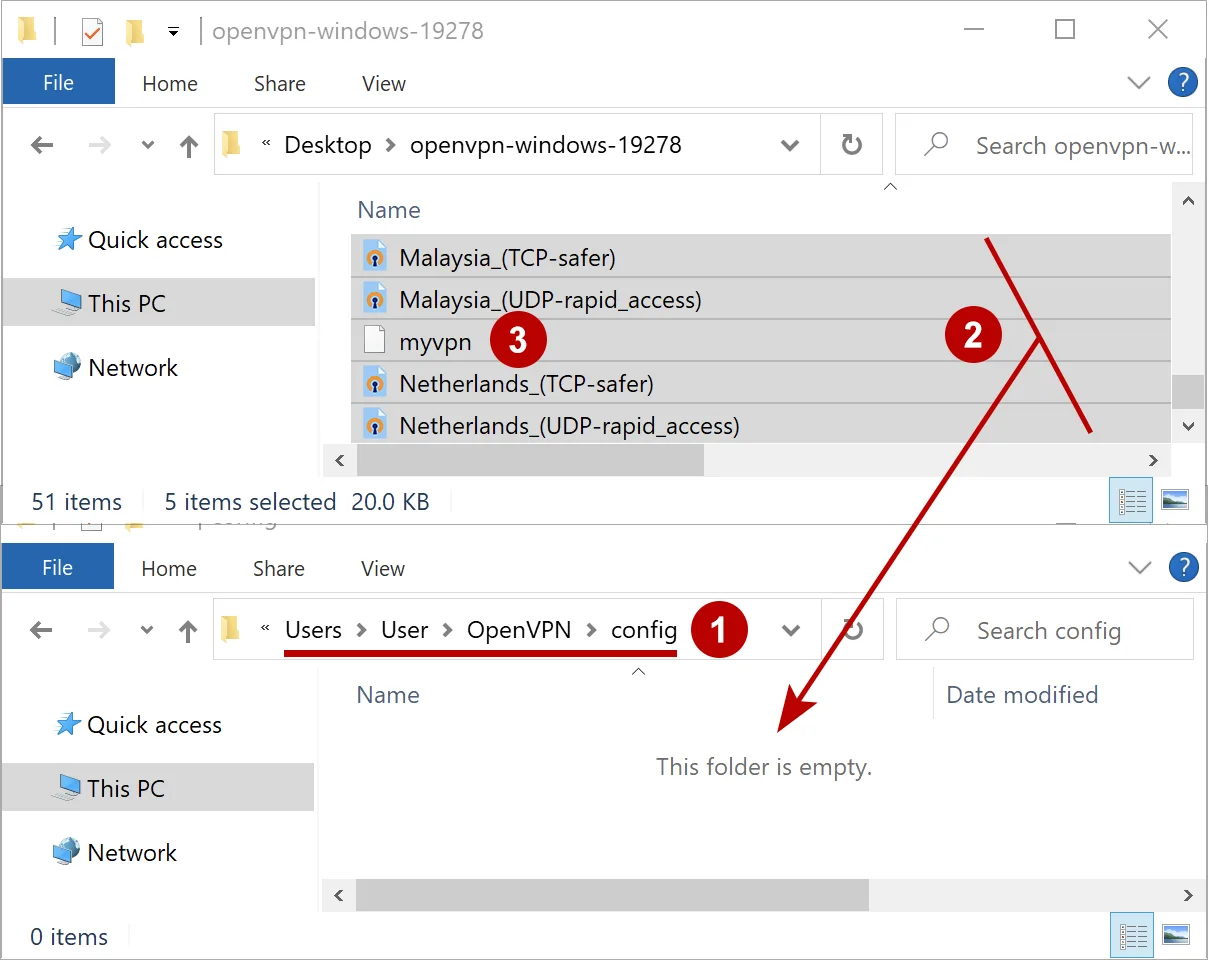
To work with OpenVPN connection need to download archive with certificates to folder "Program Files (x86)/OpenVPN/config". Then unzip the archive into the same folder.
To unzip the file, right click on file and select "Extract all...".
Check the path of extraction. We recommend to install program by default in: "C:/Program Files (x86)/OpenVPN/config".
If you see the message "No access to the target folder. To copy this folder must be an administrator", click "Continue".
After unpacking, verify the presence of the certificate files (5 files). Archive with certificates "cert.zip" after unpacking can be deleted.
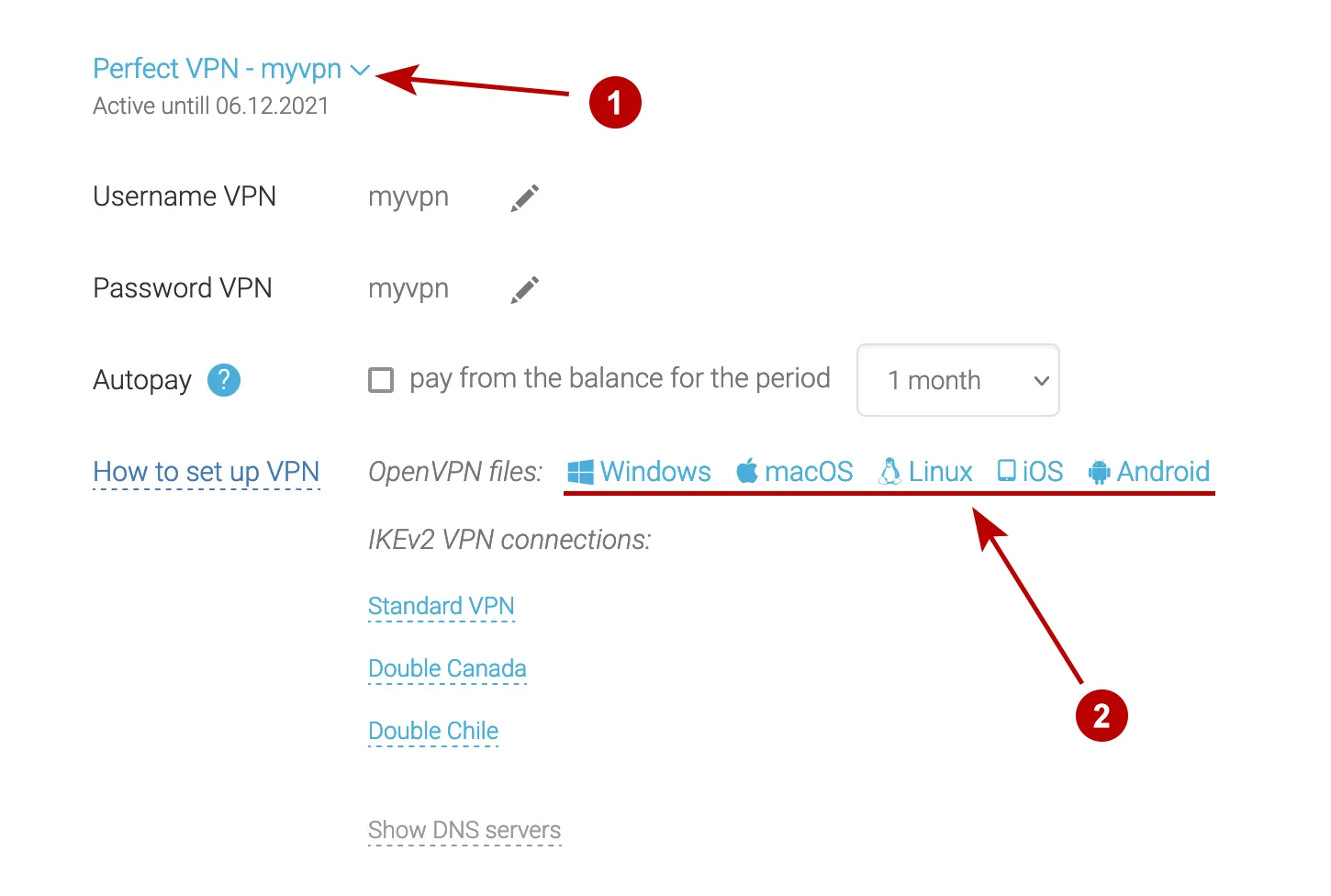
In section Subscriptions, you should download config file ".ovpn" (or files if you bought access to several VPN servers). Click to name of connection to download it to folder "C:/Program Files (x86)/OpenVPN/config".
Program OpenVPN is installed. Run program OpenVPN due to icon on your desktop.
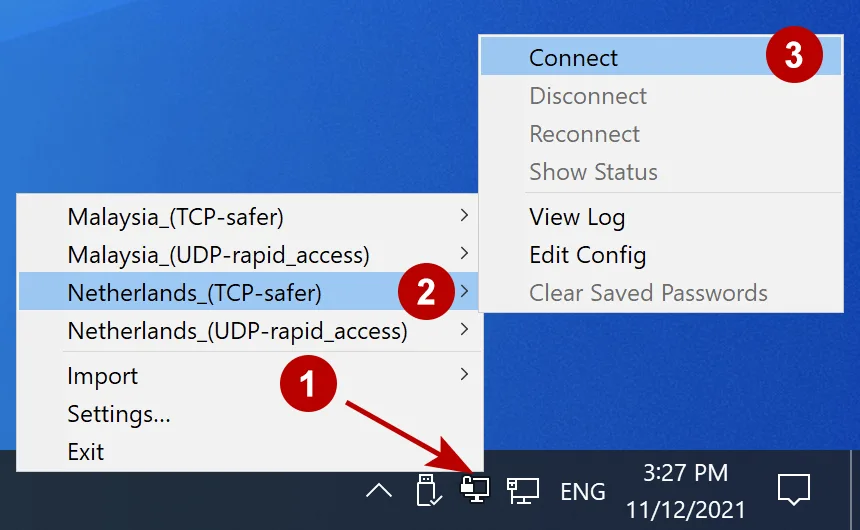
In the system tray you can find icon with two computers with a red screens.Right mouse button click on icon and select "Connect".

Type Username VPN and Password VPN for connection to VPN server. You can fin it in section Subscriptions in the panel.
For automatic entry of login and password look at "Advices from the service TheSafety.US" in the bottom of page.

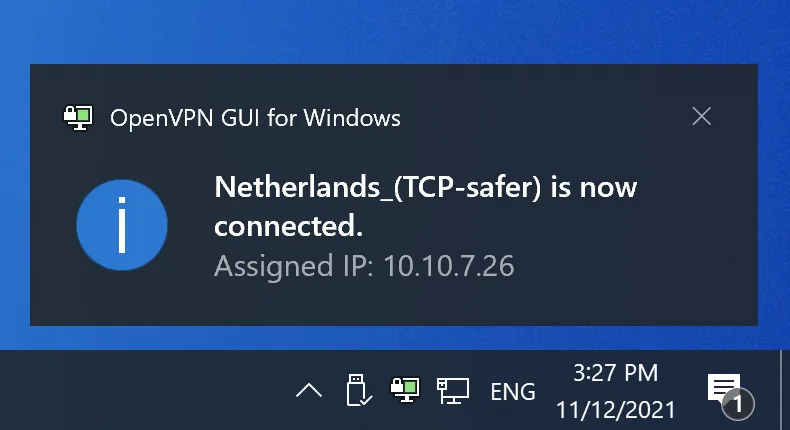
After successful connection to VPN server, monitor screens on the icon will be green.
Advices from the service TheSafety.US
- Check the IP address after successful connection.
- If you have problems with connection, go to section FAQ -> General questions and VPN errors. There are answers to many questions there.
- To setup the automate input of login and password, and for network blocking at disconnection, we advice you to visit the page Additional settings.
If you have any problems, apply to Technical support,
they will answer and help you!

En
Ru
De