You can send us a message. You should type your Email and Message.


Subscribe to RSS:


Twitter RSS Share
Your IP: 38.107.179.222
10 apr
2012

Registration of new Socks accounts was opened. Currently, in new Socks accounts will not be present Socks in the U.S..

Send your request to create Socks account only if you DO NOT need Socks from the U.S.

2 apr
2012

All VPN with static dedicated IP began to support the RDP port forwarding. Port for OpenVPN connection is a standard - 3389. For the PPTP connection works port 3390.

Due to this feature it is possible to accept connections on the RDP port through Windows Remote Assistance, or use any other application.

We wish you a successful deals!

We try to provide the best service to our customers. And we believe in our success!

How to Setup PPTP VPN connection on Mac OS X

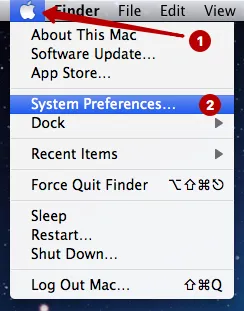
For setup PPTP VPN connection on any version of Apple Mac OS X - 10.4 (Tiger), 10.5 (Leopard), 10.6 (Snow Leopard), 10.7 (Lion) go to "System Preferences".

System Preferences - Setup PPTP VPN on Mac OS X

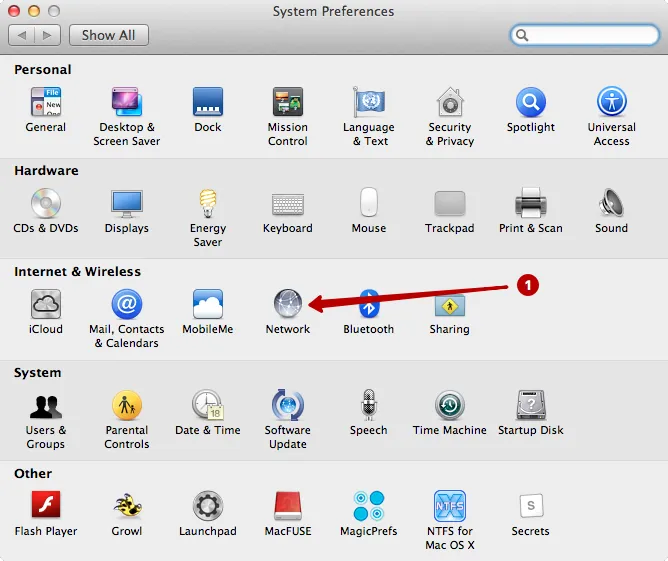
Choose section "Network".

Section Network - Setup PPTP VPN on Mac OS X

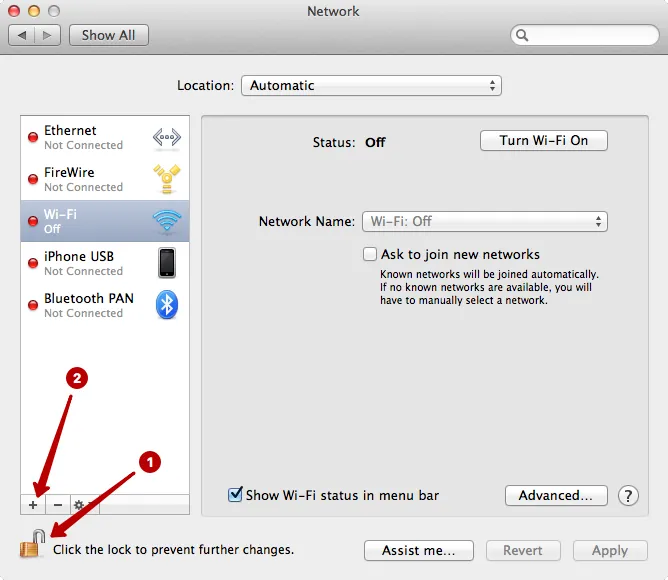
Click to sign "+" in the bottom of window.

Add a connection - Setup PPTP VPN on Mac OS X

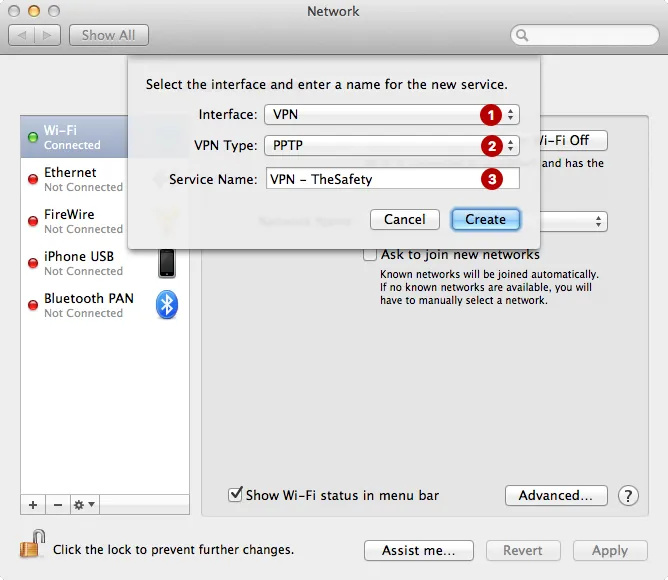
Choose:

  1. Interface: "VPN".
  2. VPN Type: "PPTP".
  3. In the field "Service Name" write name of connection. For example, "VPN - TheSafety.US".

Creating of VPN connection - Setup PPTP VPN on Mac OS X

In the appropriate fields, enter:

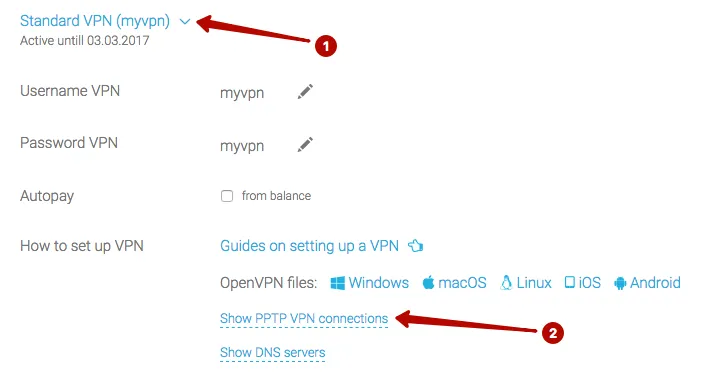
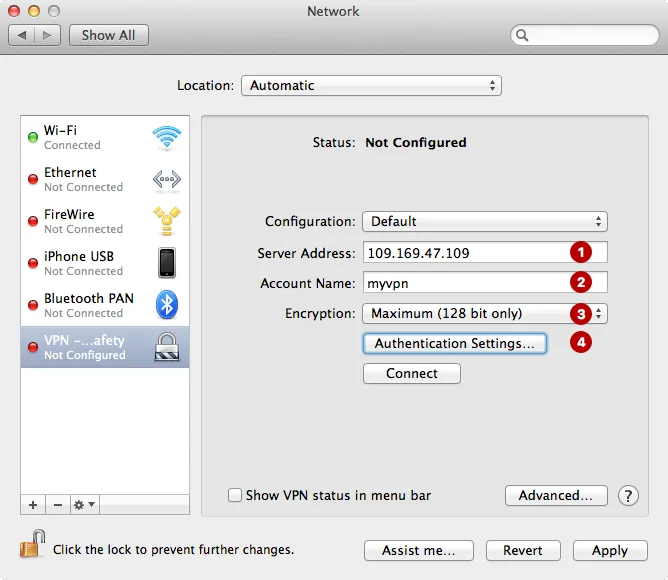
  1. "Server address" - IP address of VPN connection.
  2. "Account Name" - type Username VPN. This information you can see in section Subscriptions.
  3. "Encryption" - Maximum (128 bit only).
  4. Mark "Show VPN status in menu bar".
  5. Setup of connection - Setup PPTP VPN on Mac OS X

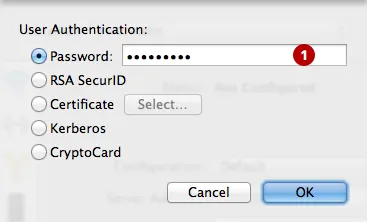
  6. Press button "Authentication settings" and type Password VPN. This information you can see in section Subscriptions.
  7. Type Password VPN - Setup PPTP VPN on Mac OS X

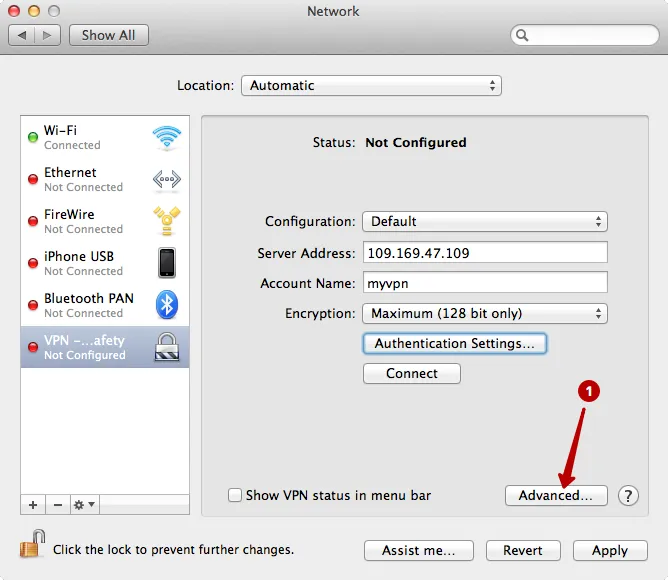
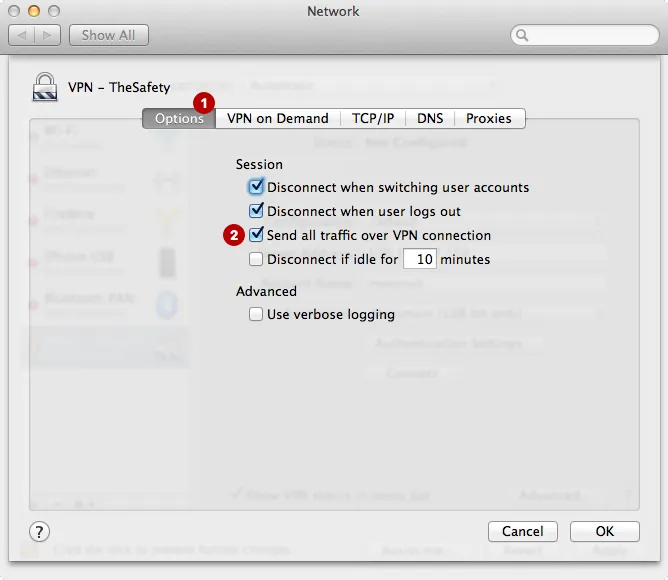
  8. Press button "Advanced" and on tab "Options" mark "Send all traffic over VPN connection".
  9. Send all traffic over VPN connection - Setup PPTP VPN on Mac OS X

For saving data click "Apply".

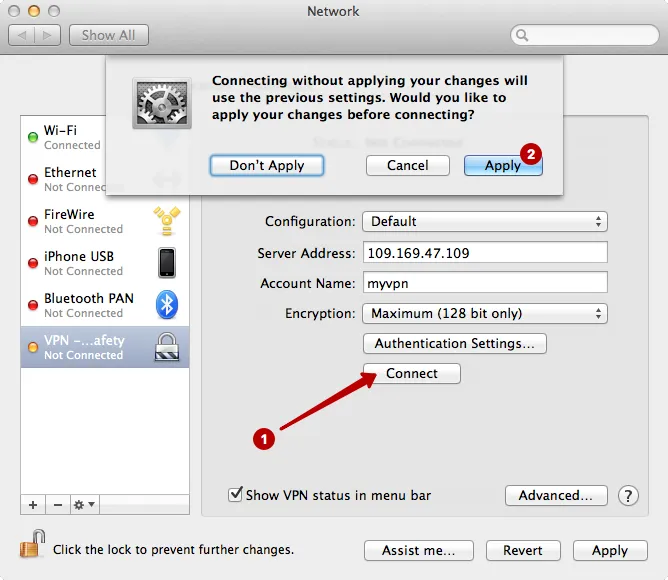
If you want to connect immediatelym then click to "Connect". At the shown window apply changes.

Apply changes - Setup PPTP VPN on Mac OS X

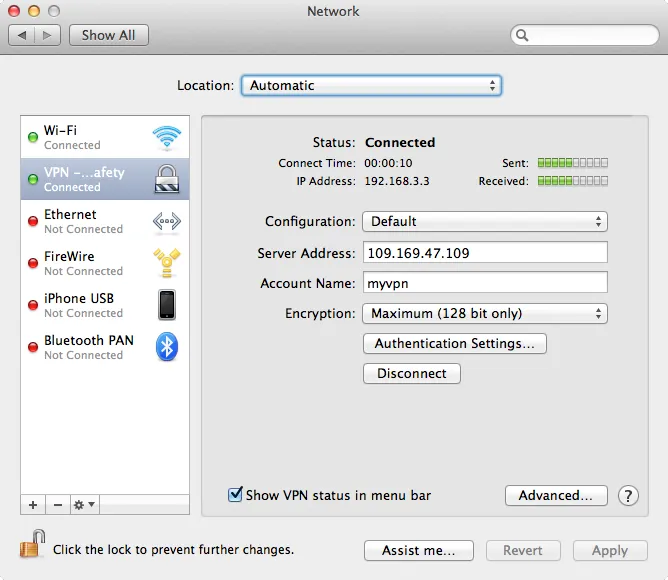
PPTP VPN connection is established successfully. You will see status "Connected".

PPTP VPN connection is established successfully - Setup PPTP VPN on Mac OS X

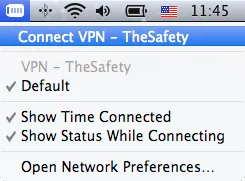
In the future to connect to VPN server is enough click to icon of PPTP connection in the right top corner of screen and click "Connect VPN...".

Connect PPTP VPN - Setup PPTP VPN on Mac OS X


Advices from the service TheSafety.US

  1. Check the IP address after successful connection.
  2. If you have problems with connection, go to section FAQ -> General questions. There are answers to many questions there.


If you have any problems, apply to Technical support,

they will answer and help you!